
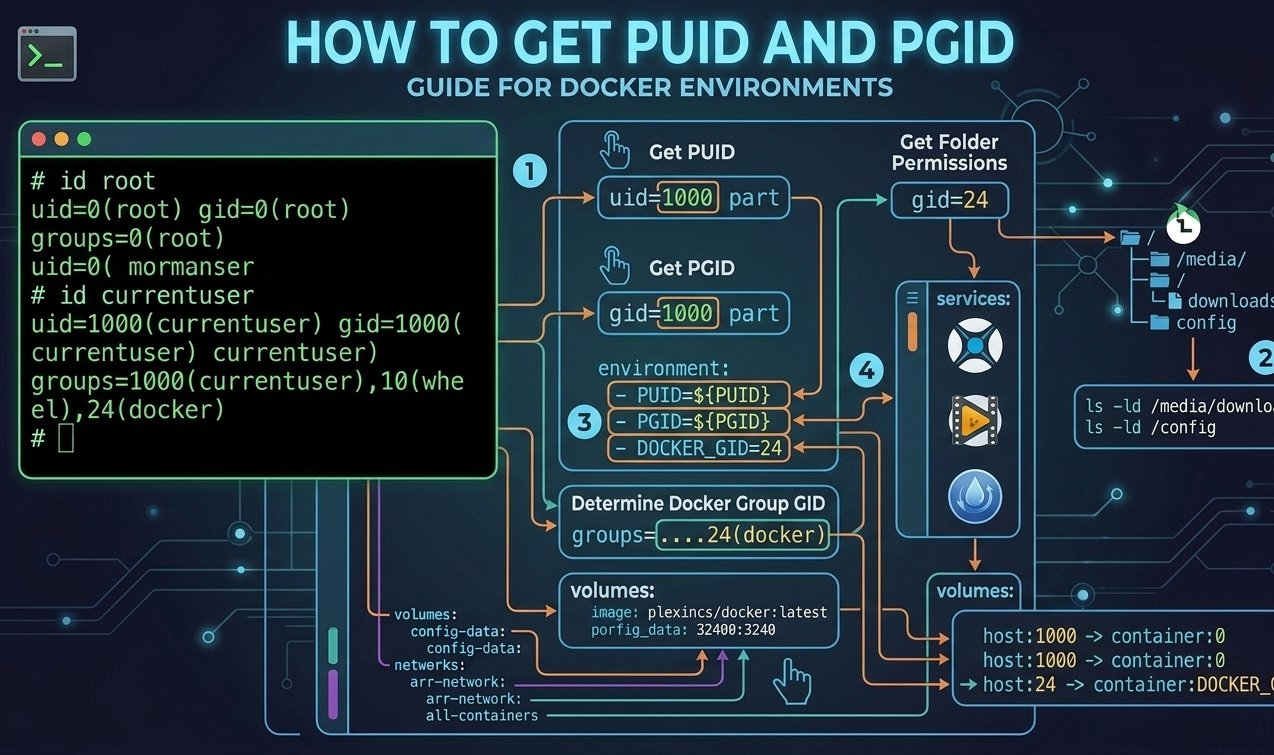

To get your PUID (Process/User ID) and PGID (Process/Group ID) for Docker or NAS setups, open your terminal or command line and run the following command:
id
This will return your user’s specific uid (PUID) and gid (PGID), which you can then pass into your Docker container’s environment variables.
For a visual step-by-step breakdown of how to find these values through a Synology NAS GUI without using SSH commands, watch this tutorial:
Finding your IDs on Specific Systems
1. Linux / macOS Terminal
- Open your terminal.
- Type id and press Enter.
- Look for the numbers next to uid= (PUID) and gid= (PGID).
2. Windows (via WSL)
If you are using Docker in WSL (Windows Subsystem for Linux), your default PUID and PGID will usually both be 1000. You can verify this by running id inside your WSL terminal.
3. Synology NAS (GUI method)
If you prefer not to use SSH:
- Go to Control Panel > Task Scheduler.
- Click Create > Scheduled Task > User-defined script.
- Set the User to root.
- Under the Task Settings tab, check the box to send details by email and put id in the run command box.
- Execute the task. You will receive an email containing your exact UID and GID.